Set filters
Note
This article refers to the legacy FraudScore interface. See more details here.
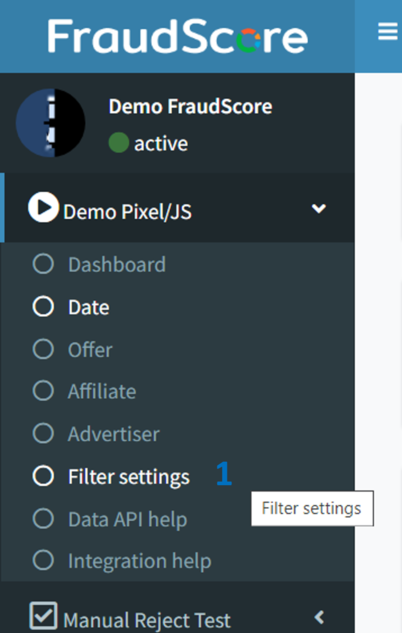
FraudScore provides an opportunity to customize settings for SafeClick. This means that you can choose which ad fraud filters you want to be applied to real time clicks check-ups. Go to the channel, and select Filter Settings tab (1):
You’ll get to the Filter Settings window. Here you can learn more about the filters (2) that can be applied to your traffic inside SafeClick. Each filter has a short description and you can decide what filters you want to activate or deactivate for your clicks traffic analysis. Select or deselect the filters (3):
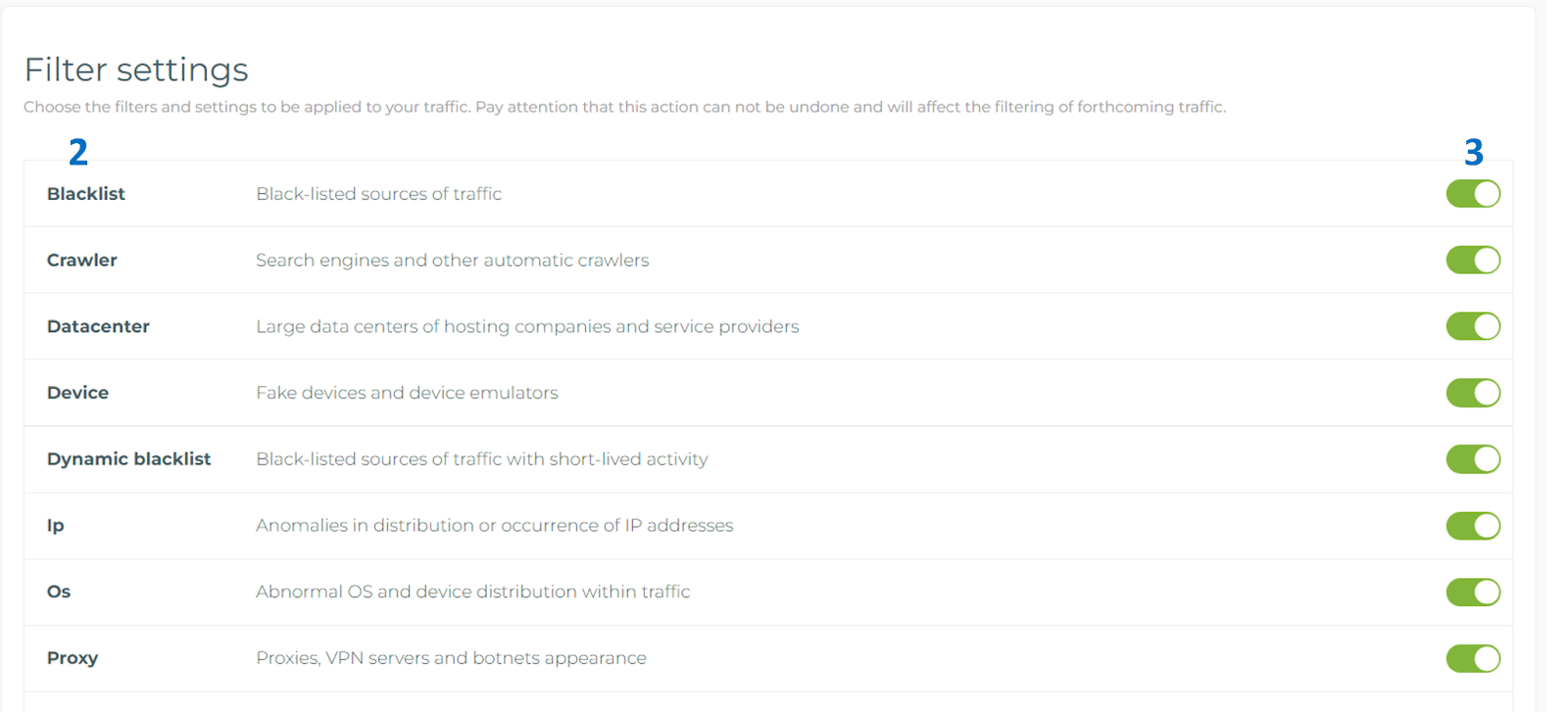
- Blacklist - For traffic that is coming from IPs that are known to provide fraudulent traffic and are blacklisted.
- Crawler - When a crawler is detected in the traffic. I.e. a search engine which is parsing web pages.
- Datacenter - Traffic coming from servers in data centers or known cloud platform providers, rather than residential or corporate networks (very low likelihood of a real human user).
- Device - All the abnormal device parameters, fake device IDs (user agent, IDFA/Android ID, MAC address, etc.) and their combinations. Always a sign of non-human traffic, bot traffic, device emulators etc.
- Dynamic blacklist - When an IP is not associated with permanent connections and is dynamically changing the connection type (mobile).
- IP - When an IP address and the device that is sending the click have different geo. IP doesn’t match the declared geo.
- OS - Abnormal device parameters (browser version, device models, operating system, etc) that are considered as signs of ad fraud.
- Proxy - Traffic that is routed through an intermediary proxy device or network; IPs that are associated with known Botnets and Adware; Users who are actively hiding their identity with proxy services; Tor.
Caps
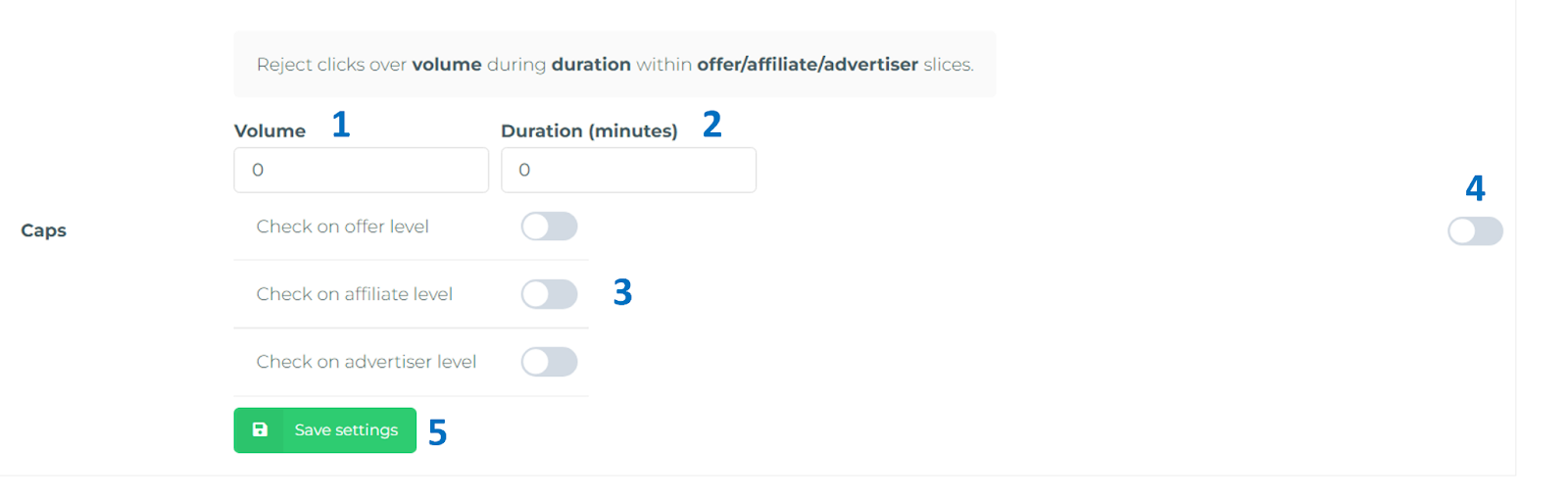
You can set the Caps filter for your traffic. Caps allow rejecting clicks if the amount exceeds the threshold (CAP) in a set period.
You set clicks threshold Volume (1), Duration (2) (time in minutes) and you can set on which Level (3) (slice) to group them – offer, affiliate, advertiser (can be used in combination). FraudScore checks if the set volume of clicks is not exceeded during the specific period within a slice. Clicks that are sent after the threshold is reached will be marked "CAP" and get rejected, depending on the settings.
Don’t forget to turn the filter on (4) and click Save Settings (5) when you are done:
ClickSpam
You can also set the ClickSpam filter. ClickSpam helps you to clean spamming clicks from your ad campaigns.
You set clicks threshold (1) (volume) and duration period (2) (duration in seconds). The threshold means how many clicks from the same user device are ok during the Duration period.
When the volume is exceeded – then this user's device is considered to be fraudulent, and clicks from this particular device will be marked as “CLICKSPAM”. If the device continues to send clicks – then it continues to violate the settings. Once the device doesn’t send any click inside the Duration period, then clicks from it are no longer marked as clickspam.
Don’t forget to turn the filter on (3) and click Save Settings (4) when you are done:

Note
Please note, that the changes can not be undone and after you save the settings - all the incoming future clicks will be scored by SafeClick using the filters set by you.
aug 6, 2026