General / Custom
Note
This article refers to the legacy FraudScore interface. See more details here.
SafeClick is a special solution developed by FraudScore to prevent click fraud, before fraudulent clicks go further. SafeClick checks if the click is fraudulent and then redirects all the good clicks to the Target URL and fraudulent ones to a Fallback URL. So SafeClick works as a filter (click quality targeting).
SafeClick settings depend on the tracker that you use, but in general SafeClick setup looks as follows:
Part I: Create Integration for SafeClick
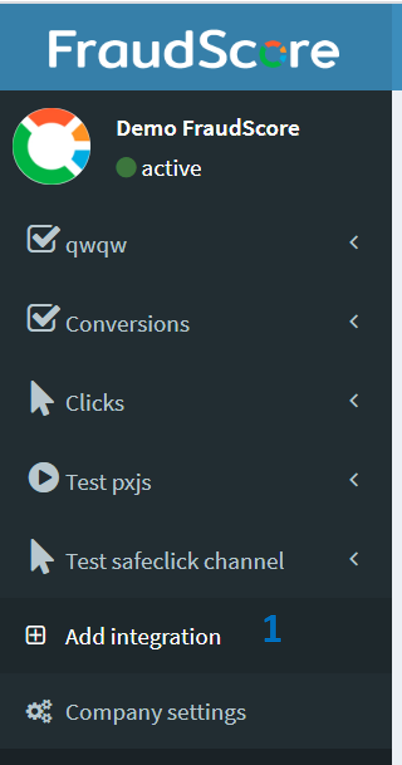
1.First, you need to Set SafeClick Integration for your account. Go to the left side menu, Add Integration (1):
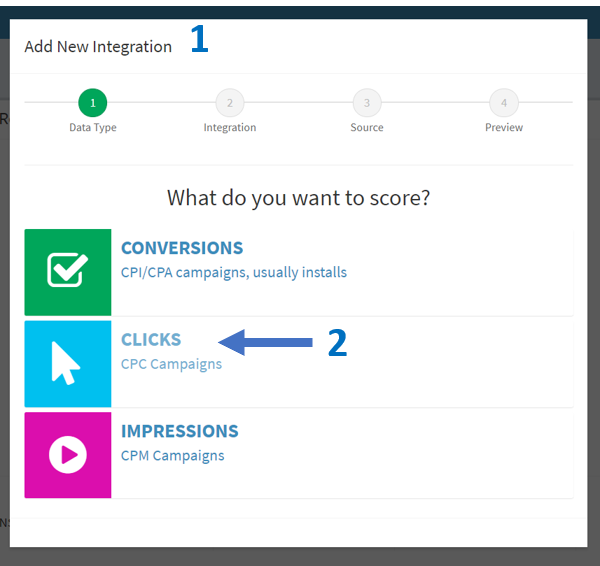
- FraudScore Integration Wizard (1) will start. Select Clicks (2):
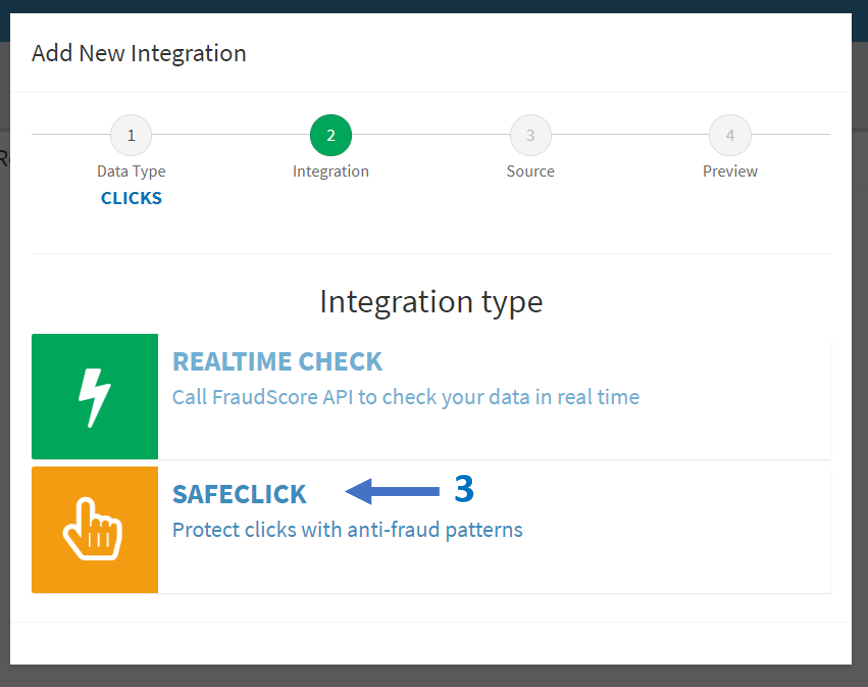
- Select the solution SafeClick (3):
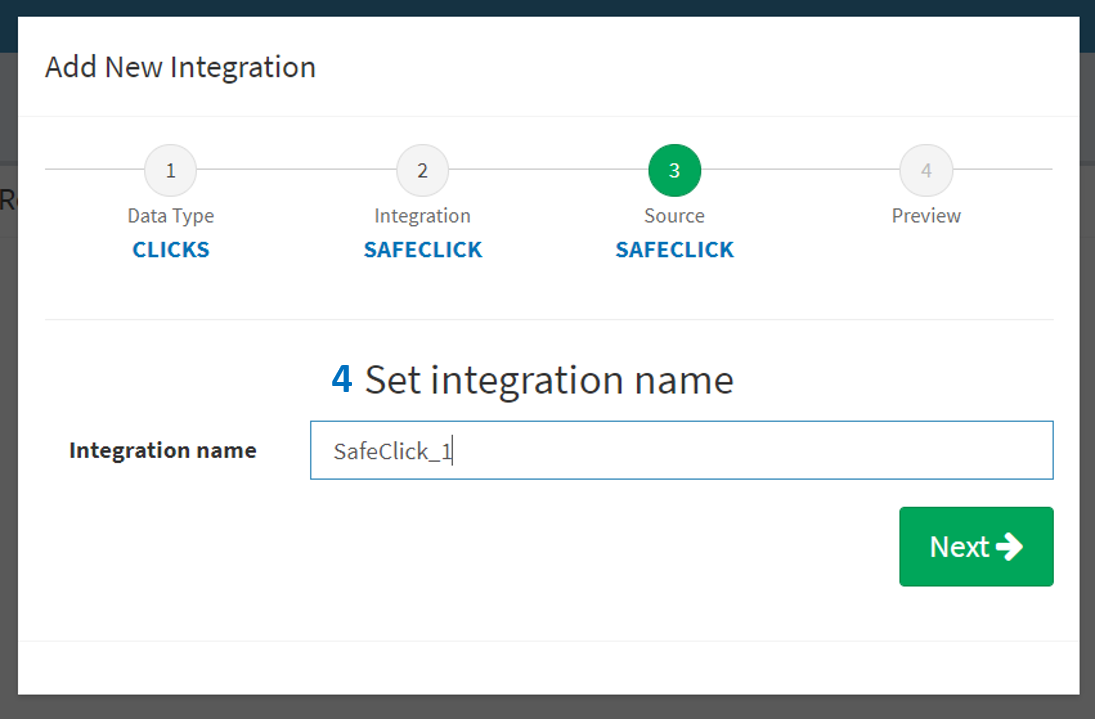
- Name your integration (4). Hint - this will be the name that you'll see in the left side menu when the integration is complete. So you can name the SafeClick integration using the name of your tracker - i.e. "SafeClick Affise":
- On the last step you need to check if everything is correct. If you need to make changes (for example - rename the integration) - click the needed step in the configuration steps (5) at the top. If everything is correct - click Create Integration (6):
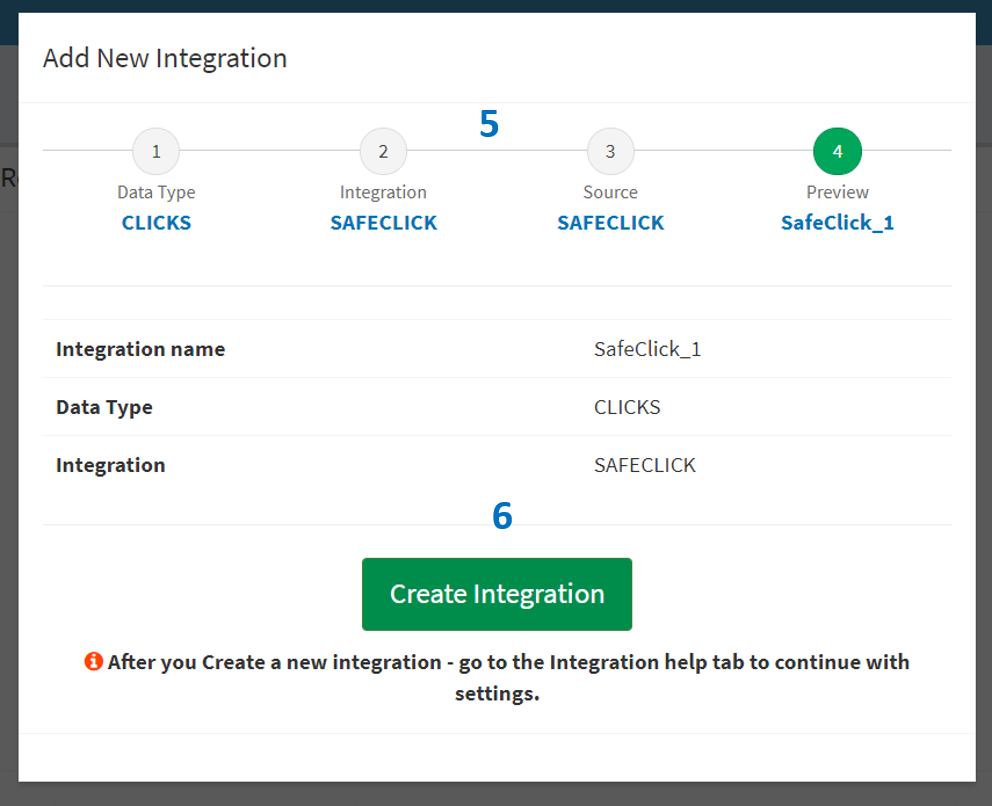
- When you click Create Integration(6) - you don't have to go to Integration help tab. Wait for FraudScore manager approval of your SafeClick integration and you'll see it in the left side menu.
What to do next depends on your tracker:
- For Affise SafeClick go here
- For HasOffers SafeClcik go here
- For custom settings - continue reading:
Part II. SafeClick settings for Custom tracker
-
You need to have two URLs - the target URL (for the good clicks to go to) and the fallback URL (for the fraudulent clicks).
-
Next, you need to set the links to FraudScore system at SafeClick page.
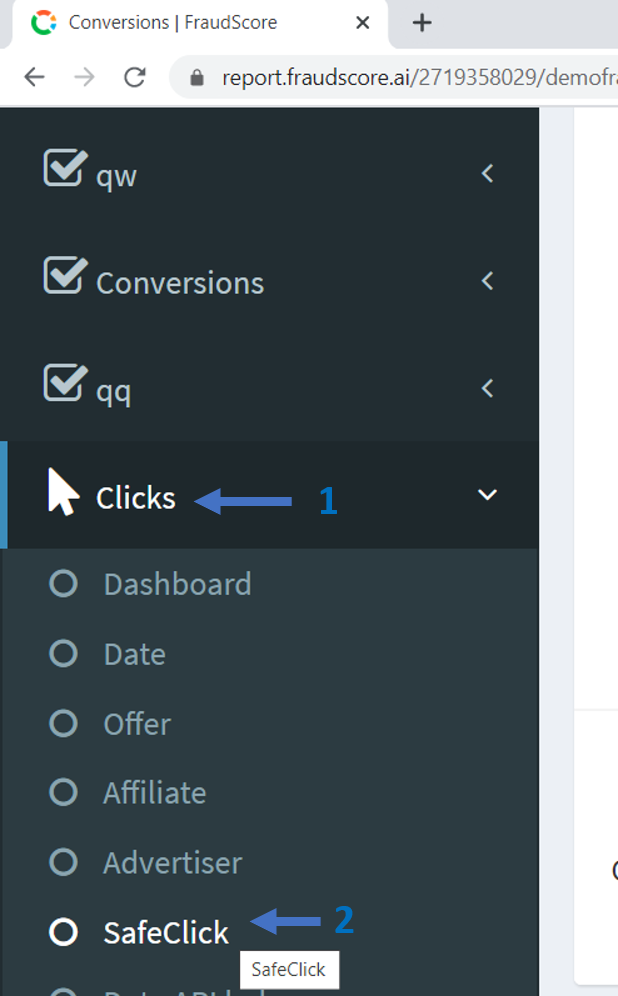
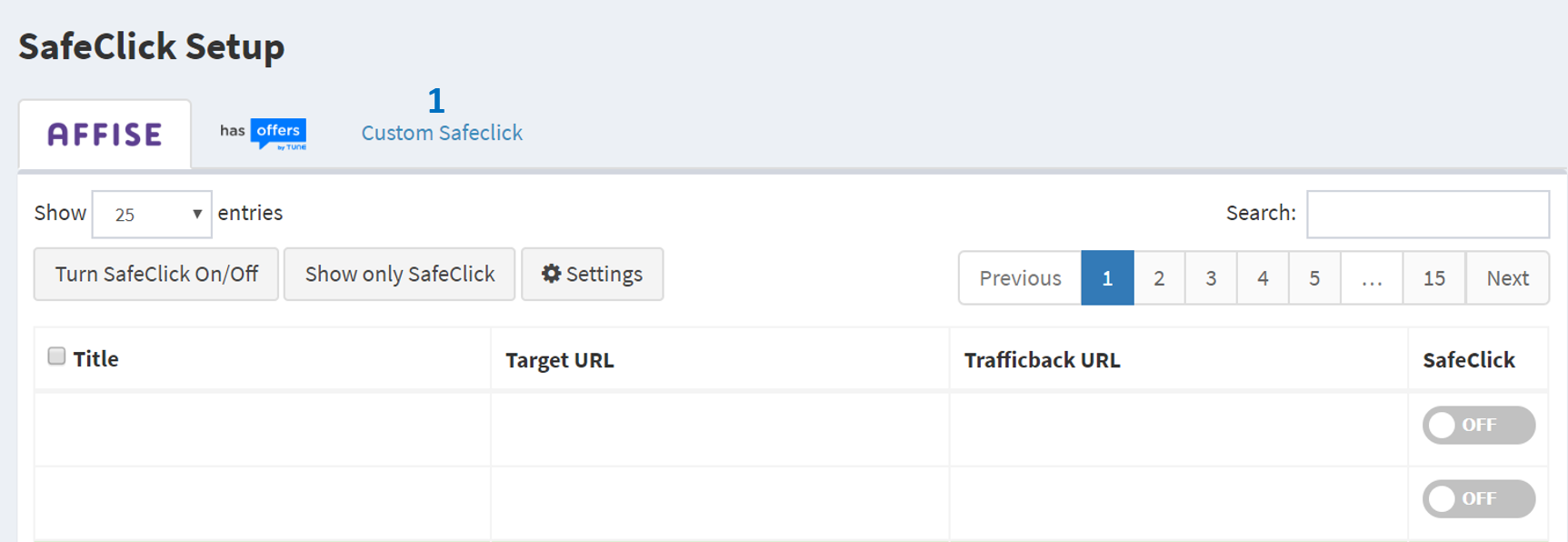
- On SafeClick page you use "Custom SafeClick" (1) button if there is no special setting for your tracker:
- SafeClick settings window appears - here you’ll be setting your URLs:
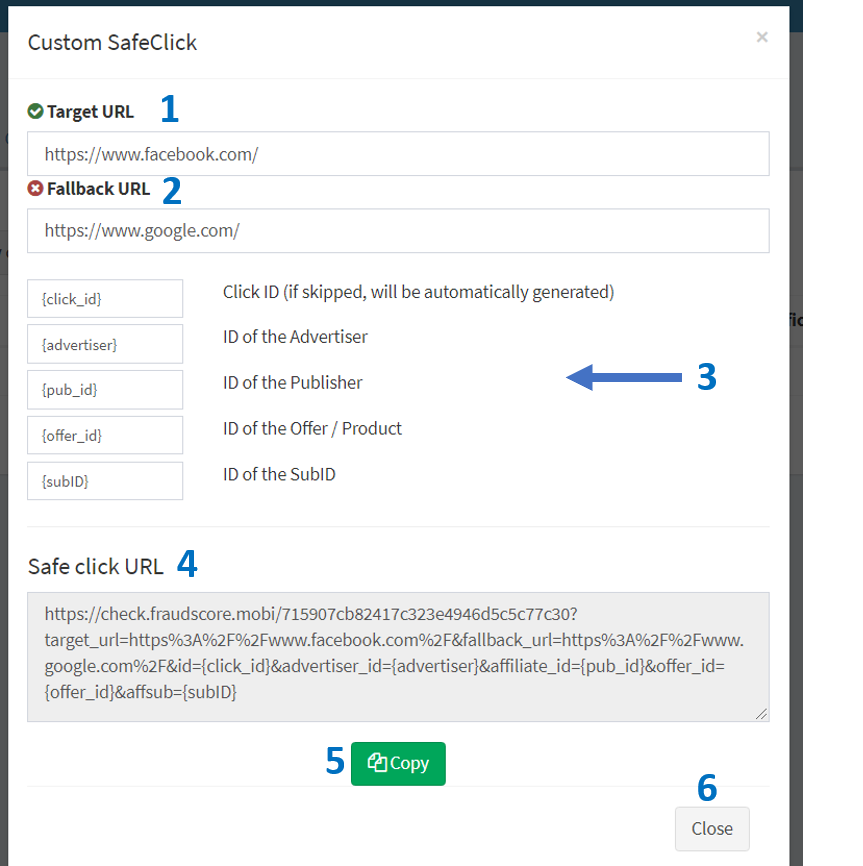
1 - Target URL for good clicks
2 - FallBack URL for fraudulent clicks.
Tip
If you don’t know where to land bad click traffic, you can use FraudScore default page URL:
https://assets.fraudscore.mobi/blank.html
Note
Note, that if you don't set the FallBack URL or set FallBack URL equal to Target URL - then all the clicks go to the Target URL and SafeClicks works in Monitoring mode. In this case, all the clicks pass the filter, and you’ll be able to check the click traffic quality in our FraudScore report.
3 - These are parameters that FraudScore is able to add to your SafeClick link. We strongly recommend setting the parameters in order to be able to work with more precise data in your click traffic quality report in FraudScore. The parameters must be urlencoded. You may also use macros {} if your ad platform supports it.
Please note that FraudScore is able to add more parameters to your link - contact your manager for further instructions.
4 - Generated final Target URL. Copy (5) it. Click Close (6) when finished.
- Paste the generated URL in your tracker.
Note
Please note that only users with Admin role have access to SafeClick settings. Otherwise - you’ll need to contact your FraudScore manager for assistance.
aug 6, 2026