Affise
Note
This article refers to the legacy FraudScore interface. See more details here.
SafeClick is a special solution developed by FraudScore to prevent fraud on click level, before it goes further. SafeClick checks if the click is fraudulent and then redirects all the good clicks to the Target URL and fraudulent ones to a TrafficBack URL. So SafeClick works as a filter (click quality targeting).
Affise clients have a great opportunity specially designed to ease the process of SafeClick setup and can follow our instructions:
Note
Please, first make all the settings for the offers in your Affise account and only then go to FraudScore to turn on SafeClick option for them.
It also means that if you are already using SafeClick and you need to change the URLs in the offers on Affise side – then first turn off the SafeClick, then do the changes in Affise, and after that go to FraudScore to turn SafeClick back on. You need to do these steps because once you turn on SafeClick - it'll change the URLs and won't check whether you've made changes in the links after that.
1. You’ll need to know your Affise API Key and API URL to set “SafeClick”.
2. You need to set SafeClick integration for your account. Follow this link and use Part I: Create Integration for SafeClick. After you finish the integration, go back to this article to continue with “SafeClick” set up for Affise.
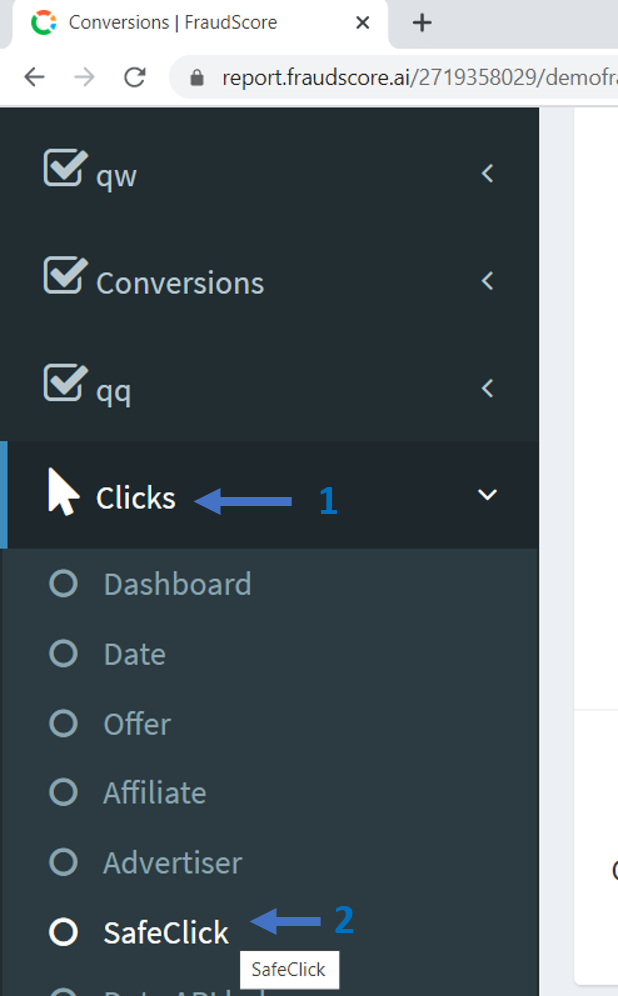
3. If you already use FraudScore for clicks, then “SafeClick” option is automatically available for you in your account. Go to your FraudScore account, the left menu, open the “Clicks” channel (1) and select “SafeClick” (2) tab:
4. When you get to “SafeClick” page for the first time you see:
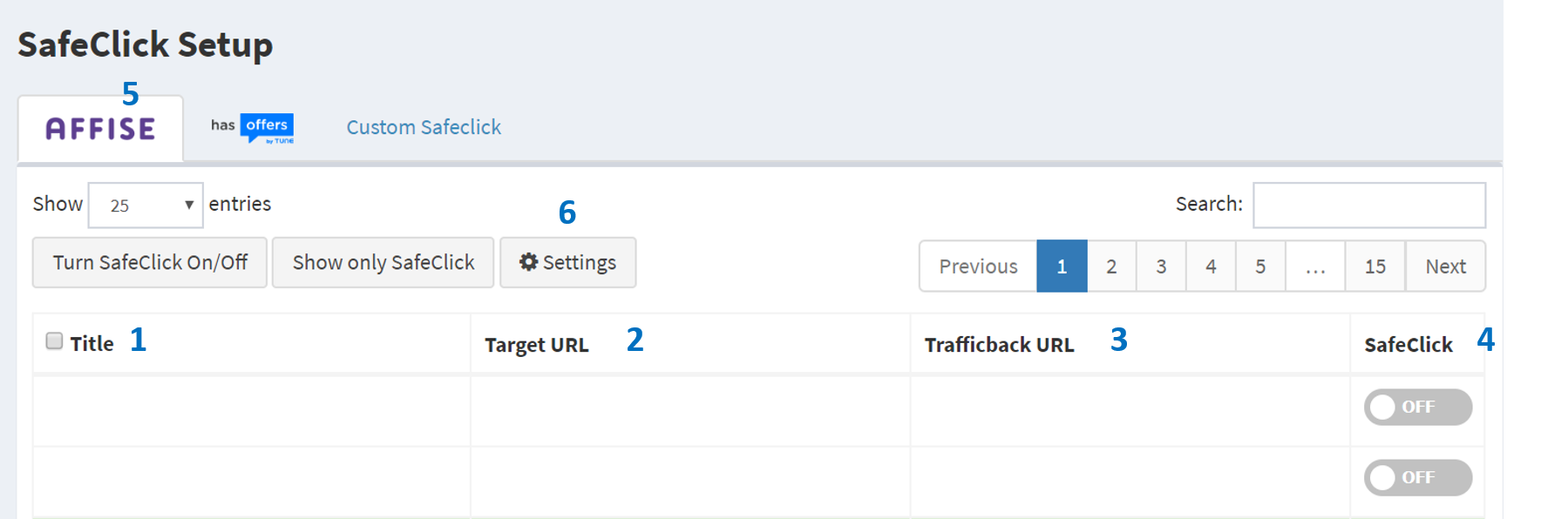
(1) Offer Title
(2) Target URLs
(3) TrafficBack URLs
(4) SafeClick switch, where you’ll be able to Turn on and Turn off “SafeClick” option for each offer. Make sure you are at the right tab - "Affise" (5) - to set "SafeClick" for your tracker.
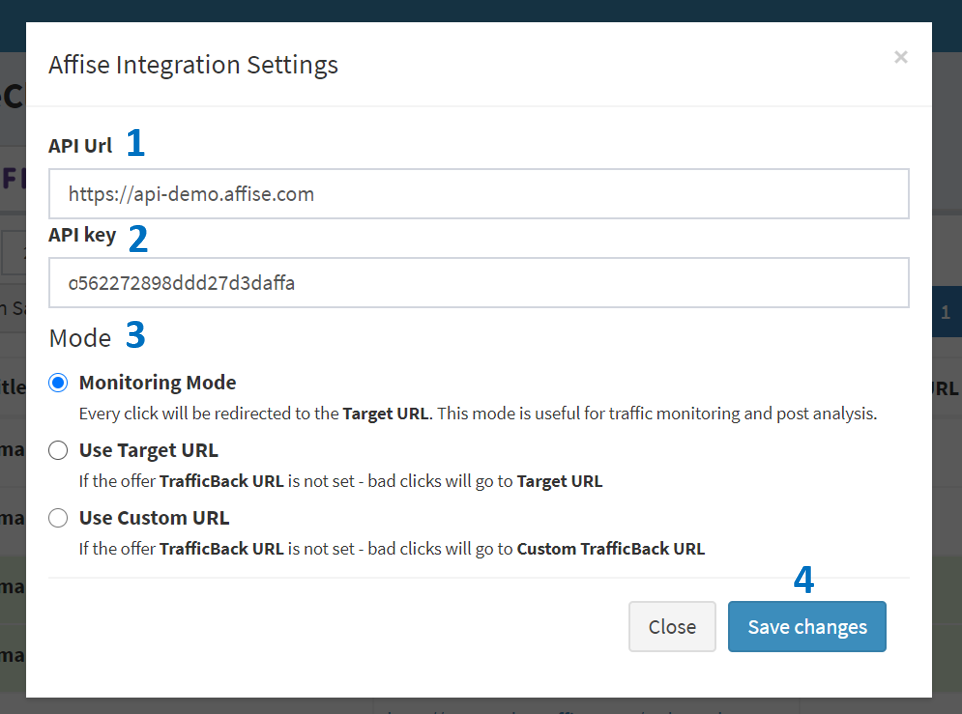
5. Now you need to set up the “SafeClick” option. Go to “Settings” (6). A popup windows will appear:
Note
Please make sure that there is no slash (/) at the end of the Affise API URL. Example: https://api-demo.affise.com
(1) You need to enter Your API URL.
(2) Your API key
(3) Select the Mode for the SafeClick option that suits your requirements. No matter what mode you choose - you always have all the statistics for clicks quality in your FraudScore report Note that you may need to read more about TrafficBack URLs for your offers in Affise Knowledge base - there is a special article about that:
- Monitoring mode - when all the clicks (both fraudulent and good) go to the Target URL, but you have all the statistics in FraudScore account. This mode is suitable for monitoring the quality of the traffic and post-analysis
- Use Target URL - all the clicks for the offer will get to the Target URL. But if you have set TrafficBack URL for some offers in your Affise account - then clicks for such offers will go to TrafficBack URL.
- Use Custom URL - means that you’ll set a TrafficBack link to redirect fraudulent clicks there. If you select “Use custom URL” - a new input box will appear:
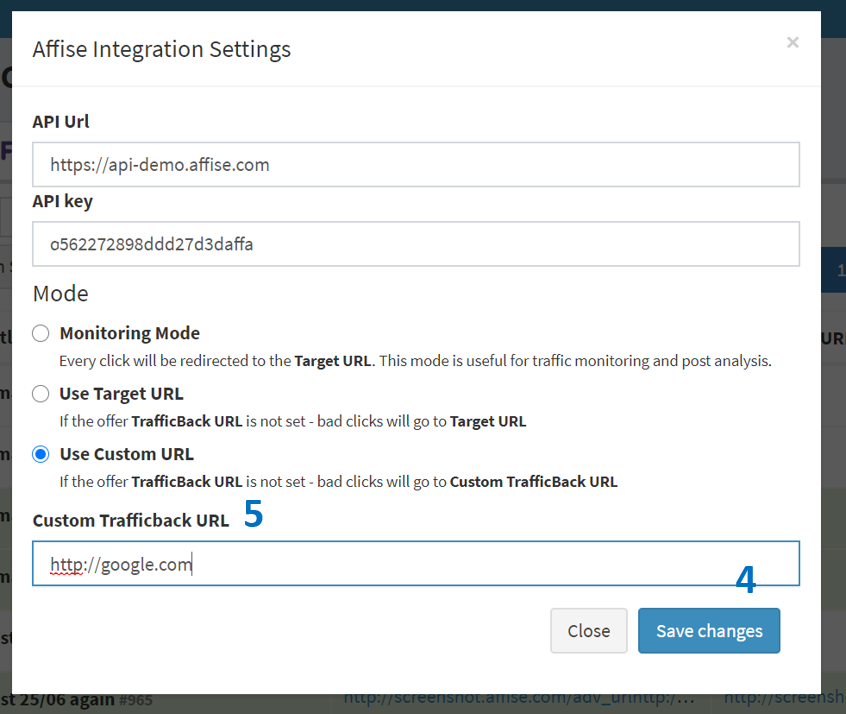
(5) Enter your TrafficBack URL here. This means that all the offers that don’t have TrafficBack URL set in Affise - will be redirected to Custom TrafficBack URL that you enter here.
Note
FYI, if you don’t know where to land bad click traffic, you can use FraudScore default page URL:
https://assets.fraudscore.mobi/blank.html
(4) Click “Save Changes”
Note
Please keep in mind - if you want to switch from one SafeClick mode to another (i.e. from Monitoring to Use Custom URL) – after you change the mode you need to turn SafeClick off and then back on to properly make the change.
6. After you’ve saved the changes - the offers from your Affise account will be uploaded to the list below. Note that it might take some time before the offers get uploaded in the list:
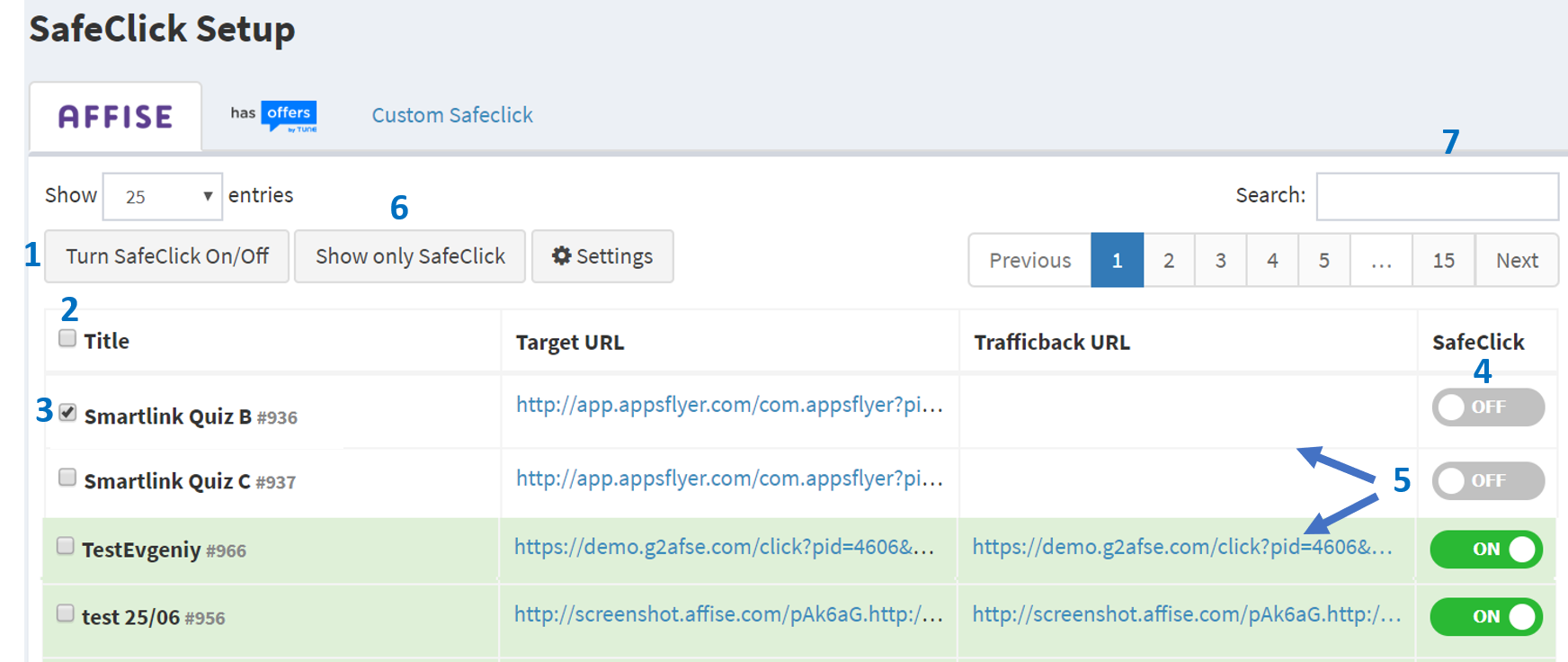
All the offers will appear in the Off mode. There are two option to to turn on "SafeClick":
1. Option one - Select the offer with checkbox (3) at the "Title" column and click Turn SafeClick On/Off button (1). If you check the Title (2) - you select all the offers in the table.
2. Option two - Use the On/Off (4) switch to set “SafeClick” for certain offers.
Note
Note (5) that if "SafeClick" is active for the offer - the row will be colored green. If "SafeClick" is disabled, the row shall be with no background.
You can click Show only SafeClick (6) to set the table and view only the offers that have "SafeClick" on. Use "Search" (7) field to find specific offers. Enter a keyword for the offers title and press "Enter".
After you’ve turned on "SafeClick" for the offers - the new target URL shall be automatically updated in Affise. So from this moment - your clicks will be checked by FraudScore and redirected to relevant URLs. All the clicks will be available for review in your FraudScore account and you'll be able to drill down the reports and statistics.
aug 6, 2026